Invoices can become difficult to manage as tax season approaches. This can happen when the data is scattered across multiple locations and in different formats.
Some invoices stay in emails, and some sit in phone galleries. While others may remain as paper receipts in drawers. Such disorganized recordkeeping can make calculations and record sharing a major hassle.
So, a better approach is to digitize all invoices and store them in a single, organized, editable, searchable place. This can help make tax filing much easier to manage.
The Best Format for Tax-Ready Invoice Data
One of the most practical formats for tax-ready invoice data is a well-structured spreadsheet.
Images or paper invoices are good proof of receipt. But they are not always easy to search, filter, store, and categorize. They can easily become a mess and may get lost or damaged.
A spreadsheet provides each detail with its proper place, such as:
- invoice date
- invoice number
- vendor name
- expense type
- tax amount
- total amount
- payment status
The spreadsheet format helps you review records faster and makes it easier to identify missing information. It also makes it easier to share all the data with an accountant before filing taxes.
Step-by-Step Workflow Before Filing Taxes
Now that we know the right format, the next step is to create a complete, easy-to-follow workflow. This workflow should help you collect, digitize, and store invoice data without any confusion.
Here’s the best practical way to organize the whole process:
1. Scan or photograph paper invoices clearly
Start with the paper invoices. Convert each paper invoice into a clear digital image.
To take a photo, place the invoice on a flat surface. Ensure good lighting so that the text stays clear and easy to read. Also, make sure that the whole invoice is visible, including the vendor name, invoice date, invoice number, tax amount, total amount, etc.
Avoid shadows, blurry images, folded corners, or cropped edges, as they can make the data hard to extract later.
2. Collect all invoices in one folder
Once the paper invoices are converted to digital form, it’s time to save all the images in a single main folder. These include invoices from emails, downloads, phone galleries, business apps, and scanned files.
Keep a clear, easy-to-remember folder name, like “Tax Invoices 2026,” so the records don’t get mixed with other folders or documents.
If you are handling a large number of invoices, you can even create subfolders by month, date, or vendor name and keep images in each one accordingly.
3. Convert invoice images into Excel data
Now that all the invoice files are digitized and organized in one folder, it’s time to convert them into a spreadsheet format.
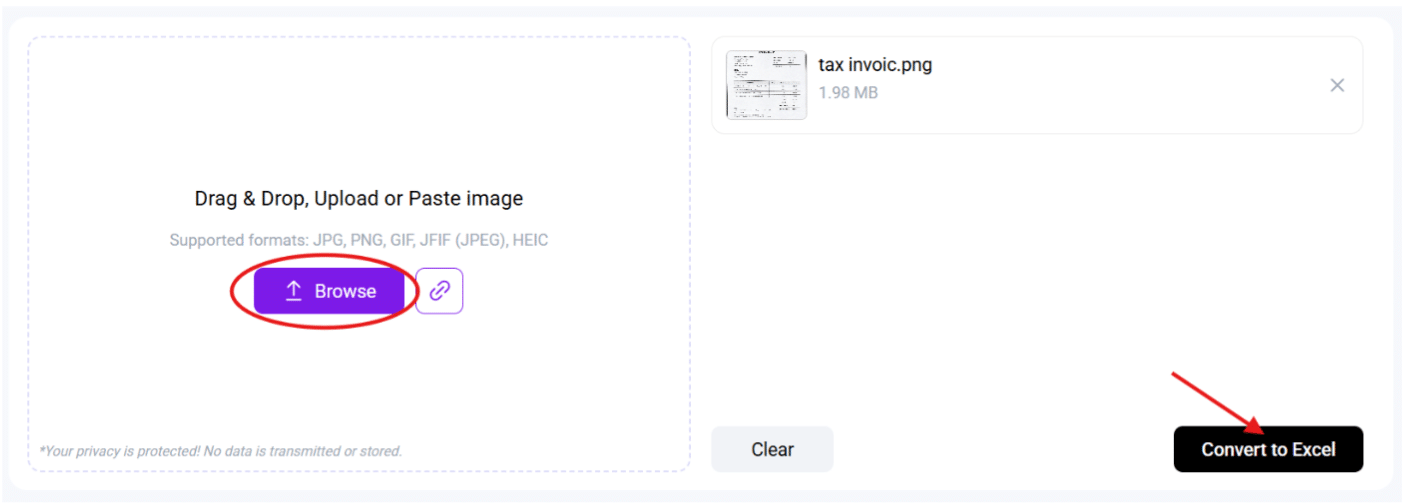
For this step, use an online JPG to Excel converter that is easy to use and allows batch processing. Access the tool, upload the invoice image/images, and click the “Convert to Excel” button.
Once converted, double-check the converted data and review it for accuracy. If anything is mismatched or missing, edit it before copying or downloading the invoice data as an Excel file (spreadsheet).
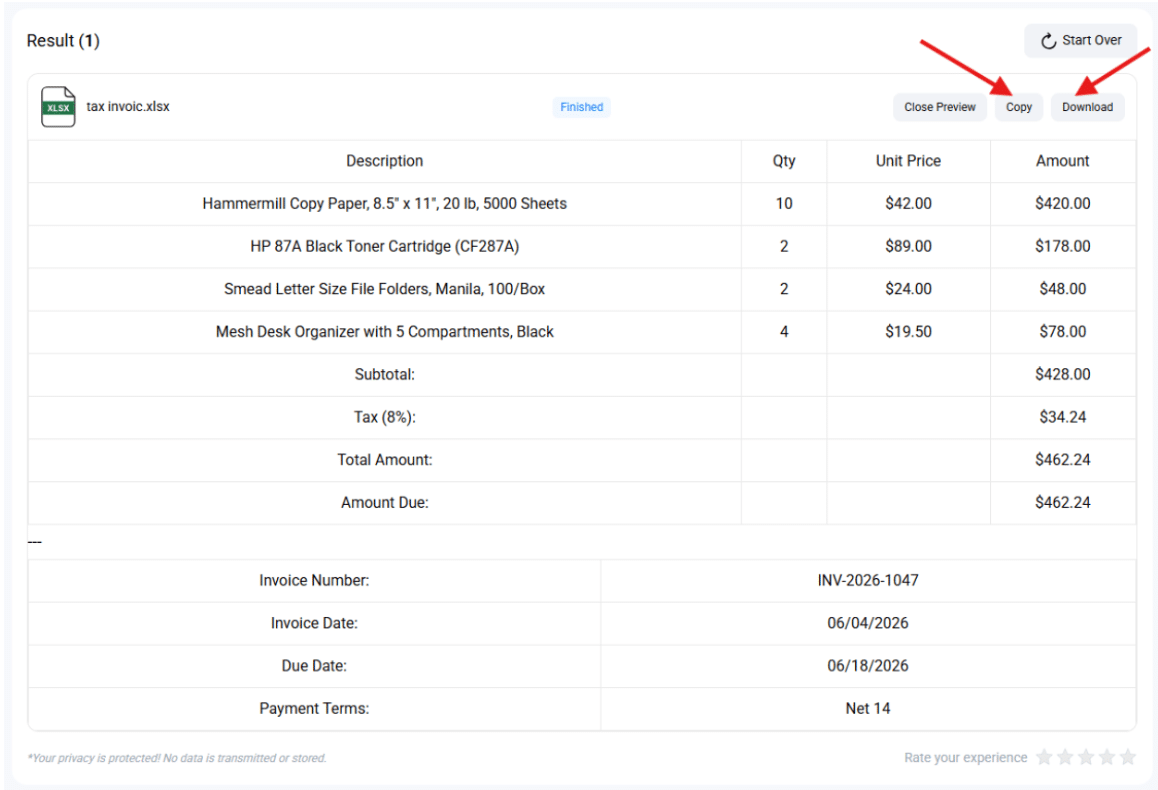
This step makes your invoice data editable, searchable, and easy to categorize and store in a single spreadsheet.
4. Categorize invoices by tax purpose
After converting the JPG invoice data into spreadsheet form, group it by tax purpose.
Common business expense categories often include:
- Office supplies
- Software subscriptions
- Travel
- Utilities
- Marketing
- Inventory
- Repairs
- Professional services, etc.
(Tip: Never leave unclear invoices unnamed. You can add a short note beside such invoices, like “client meeting” or “monthly software bill.”)
5. Keep both the original JPGs and the Excel Spreadsheet
When you have properly categorized and stored invoice data in an Excel spreadsheet, don’t delete the images. Save both the JPGs and the Excel file.
The spreadsheet helps with easy review and calculations, while JPGs are important as proof. Keep both of them in the same tax folder. And don’t forget to create a backup in cloud storage or on an external drive.
Common Mistakes to Avoid
- Never rely totally on just invoice images. They are good for proof, but you must convert them into an editable and structured spreadsheet.
- File names should always be clear and easy to remember. Don’t save files with confusing/unclear names like “IMG_2045” or “receipt-final.”
- Never mix your personal invoices with business invoices. This can make tax records messy and hard to review.
- Don’t ignore duplicate invoices. The same invoices may come from email, downloads, or phone photos.
Wrapping Up
Digitizing and saving invoice data isn’t hard at all. It’s mainly about keeping everything clean and tidy. All the records should be clear, searchable, and easy to review.
While paper receipts and JPG invoices are useful as proof, they become much more valuable and easier to manage when saved in a single structured spreadsheet.
A simple workflow of scanning, collecting, and converting invoice data into an Excel spreadsheet makes tax filing efficient while avoiding any last-minute confusion.
“This content is for informational purposes only and does not constitute legal, tax, or financial advice. For advice specific to your situation, consult a qualified US attorney or CPA.”
File Your LLC Today
25$ off with a coupon
Lock in EasyFiling's transparent rates and get lifetime compliance support at no extra cost.
Get Started Now
Swostika Silwal